
 AskAIs
ใช้ AskAIs จาก Claude Code, Cursor, ChatGPT, Grok และ Gemini (MCP)
ตอนนี้ AskAIs มาพร้อมกับเซิร์ฟเวอร์ MCP เชื่อมต่อจาก AI editor หรือแอปแชทของคุณ สร้างพื้นที่ทำงานแชทสดฟรีอัตโนมัติด้วยคำสั่งเดียว แล้วจัดการบทสนทนา ฝึก AI และดูการวิเคราะห์ได้โดยไม่ต้องออกจากเครื่องมือของคุณ
AskAIs now ships an MCP server, so you can run a full live chat and AI support workspace without leaving your AI editor or chat app. Connect it once from Claude Code, Cursor, ChatGPT, Grok, or Gemini, then ask the assistant to spin up a free workspace, embed the widget on your site, reply to conversations, train the AI, and read analytics. No dashboard tab required.
What is MCP?
MCP stands for Model Context Protocol, an open standard that lets AI assistants talk to external tools and data over a single, uniform interface. Think of it as a universal adapter: instead of every app inventing its own plugin format, an MCP server exposes a set of tools that any MCP-compatible client can call. Claude Code, Cursor, ChatGPT, Grok, and Gemini all speak MCP, so one AskAIs server works across all of them.
We added MCP because our users already live inside these tools. If you are shipping a product, you should be able to stand up customer support from the same window where you write code, without copying keys between tabs or hunting through docs to find the right button.
The endpoint
AskAIs exposes a single hosted MCP endpoint over streamable HTTP. There is nothing to install and nothing to run locally:
https://mcp.singchat.orgThat bare domain is the whole connection string, and the landing page has copy-paste snippets for every client. It works with any MCP client that supports the HTTP transport.
How to connect
Claude Code
Run one command in your terminal:
claude mcp add --transport http singchat https://mcp.singchat.orgClaude Code registers the server and its tools become available in your next message.
Cursor
Open your MCP settings and add the server under mcpServers:
{
  "mcpServers": {
    "singchat": {
      "url": "https://mcp.singchat.org"
    }
  }
}
ChatGPT
In ChatGPT, turn on Developer mode, open Settings, then Connectors, and add a new connector pointing at the endpoint above. Once it is enabled, the AskAIs tools show up in the composer.
Grok
Go to grok.com/connectors, choose Custom, and paste the endpoint. Grok discovers the tools and lets you call them from any chat.
Gemini
For the Gemini CLI, add the server to your settings.json under mcpServers:
{
  "mcpServers": {
    "singchat": {
      "httpUrl": "https://mcp.singchat.org"
    }
  }
}
One command to a live workspace
Here is the part that makes MCP special for AskAIs. You do not need an account to start. Ask your assistant to run singchat_setup with no key, and the server auto-creates a FREE workspace for you on the spot. The response returns:
- A short-lived, single-use browser claim link
- A website embed snippet you can drop into any page
- The public app ID for the new workspace
Open the claim link in your browser, choose your own login details, and copy the MCP key shown there once. Passwords and long-lived keys are never returned to the model, placed in the URL, or stored as plaintext. After claiming, authenticated MCP tools can act only on that workspace.
OAuth connector update: existing AskAIs workspaces should connect through https://connect.singchat.org/mcp. That endpoint uses AskAIs OAuth, does not ask users to paste an API key into chat, and is the connector submitted for official directory review.
What you can do from the editor
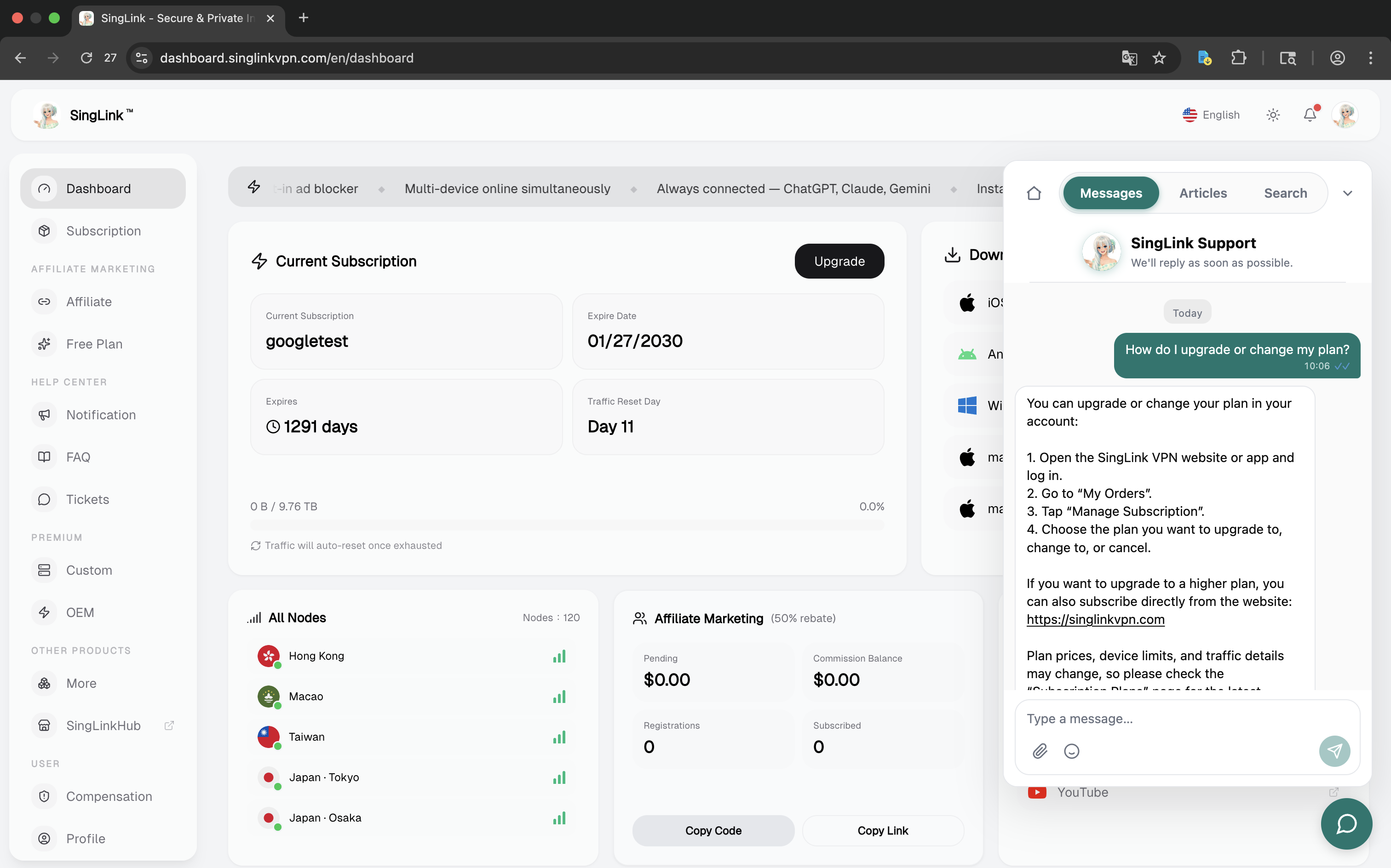
The server exposes 17 tools that cover the whole product surface, so a single conversation can go from empty to fully configured:
- Conversations: list open threads, read history, send a reply, resolve or reassign.
- AI support agent: the same RAG-powered assistant that answers your customers, grounded in your own docs so it does not hallucinate.
- Training: crawl a website, upload knowledge, or add Q&A pairs, then test answers before they go live.
- Analytics: pull conversation volume, response times, and AI resolution stats.
Embed anywhere
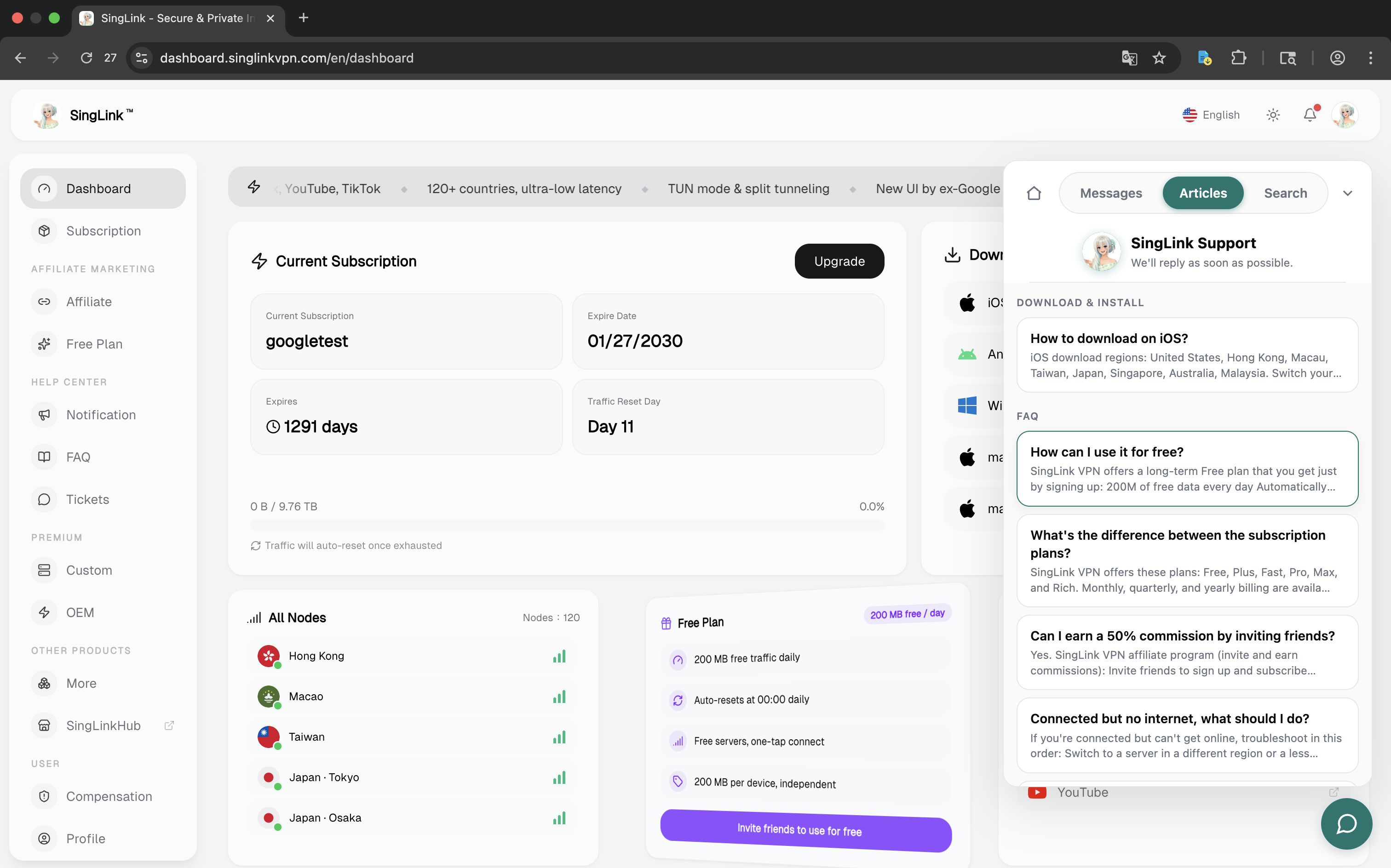
A workspace is only useful if your customers can reach it. AskAIs embeds on any platform:
- Web: a one-script widget that drops into any page.
- Mobile: native Web, iOS, Android, React Native, and Flutter SDKs.
- Desktop app via WebView: a full-screen WebView build loads the widget inside any mobile or desktop app, so you get the complete client without writing native code.
The MCP server hands you the embed snippet during singchat_setup, so the path from zero to a live widget is a single conversation.
Open source and docs
The AskAIs MCP server is open source. You can read the code, file issues, or self-host from the repo at github.com/SingLinkLabs/singchat-mcp. The full tool reference and setup guides live in the MCP docs.
Try it in under a minute
Point your AI editor at https://mcp.singchat.org, ask it to run singchat_setup, and you will have a live support widget almost instantly. Full instructions are in the MCP docs.